Editing a contract
 Security and navigation
PERMISSIONS Manager
NAVIGATION Left Navigation Menu > Contracts > Search > Contracts > context menu > Edit Contract
NAVIGATION Left Navigation Menu > Contracts > Search > Contracts > Click the contract, or hover over the context menu icon, and select View Contract from the menu. From the Summary view, click Options > Edit Contract
To edit a contract, do the following:
- To open the page, use the path(s) in the Security and navigation section above.
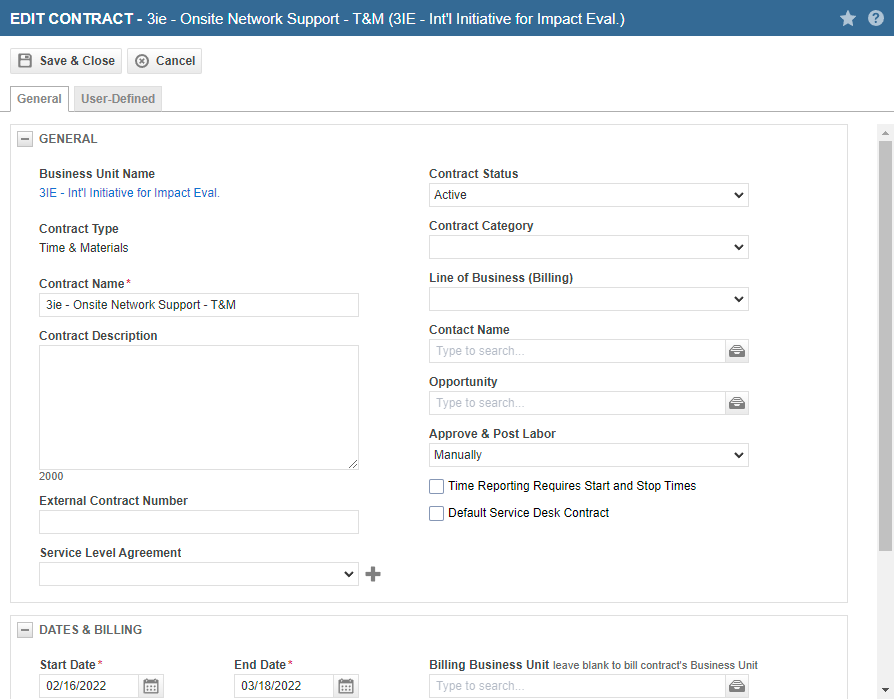
Most fields on the Edit Contract page are identical to fields that appear on the New Contract Wizard for the contract type, and can be edited. Refer to Creating a contract.
Some fields only appear on the Edit Contract window, or cannot be edited there. These fields are listed here:
| Field | Description |
|---|---|
| Fields that cannot be edited | |
| Organization Name | Once created, the contract cannot be transferred to another organization. If you created the contract for the wrong organization, use the Copy Contract Wizard. Refer to Copying an existing contract. |
| Contract Type | Once created, the contract type cannot be changed, because contract type specific entities have been created. You must delete the contract and create a new one. |
| Contract Period Type (Recurring service contracts only) | Once created, you cannot change the contract period type of a recurring service contract. The contract period type determines the billing frequency of the contract (monthly, quarterly...). |
| Approve & Post Labor (Per ticket contract only) | This field cannot be edited for per ticket contracts. The Billing Setting for per ticket contract labor is always Manually. This billing setting allows all time entries to remain in Approve & Post until the ticket status is set to complete, ensuring that the ticket purchase remains available until all ticket work is completed. |
| Start Date (for recurring service contracts only, at the point indicated in Description) | You cannot edit the Start Date for a recurring service contract once the service/bundle period has been added and the contract has been saved. |
| Setup Fee | When editing a recurring contract, the setup fee will only be editable if it has not yet been approved and posted. Once it has been posted, it will appear on the Edit Contract page as a read-only field. |
| Fields that do not appear in the New Contract Wizard | |
| Contract Status |
The contract status determines whether a contract is active.
IMPORTANT To stop billing for future services, you must change the contract's end date to the date of the last billing event. |
| Other Fields that need to be explained | |
| Default Service Desk Contract | Reminder! An organization can have only one default Service Desk Contract. If you select the Service Desk Contract check box, the contract you are editing will replace the current default Service Desk Contract for the organization. If the box is already checked and you clear it, the organization will have no default Service Desk contract until you specify one. |
| Contract End Date (Recurring service contracts only) |
For recurring service contracts, the contract end date controls when the last billing event happens. If you extend the contract, additional recurring service billing items are created, if you shorten the contract, already created billing items will be deleted. If you extend the contract and the billing date for the first month's extension has already passed, no billing item will be created for that month. Only items for months that are to come are created. The End Date cannot be before the Start Date. |
- Make changes to fields as needed.
- Click Save & Close.


